Writing a Hook
This guide builds a hook from scratch: a small bash script that reads context about the run, inspects the units that were planned, and adds a list of them to the Pipelines comment on the pull/merge request. Along the way it covers the full loop a hook goes through, reading inputs from the environment and writing outputs to files.
Before you start, make sure hooks are set up for your repository. See Setup & Prerequisites.
1. Create the hook script
A hook is any executable command. Here we use a bash script committed to the repository. Create a file at .gruntwork/hooks/affected-units.sh with a shebang and strict mode:
#!/usr/bin/env bash
set -euo pipefail
Hooks run from the root of a copy of your repository, so this path resolves relative to the repository root when the hook is configured. See Isolated working directory for details.
2. Read the run context
Pipelines passes information to the hook through environment variables. Context values about the run are in the PIPELINES_HOOK_CTX_* namespace, and paths to input files are in the PIPELINES_HOOK_IN_* namespace.
Read the actor and action from the context, and the path to the units file from the inputs:
actor="$PIPELINES_HOOK_CTX_ACTOR"
action="$PIPELINES_HOOK_CTX_ACTION"
units_file="$PIPELINES_HOOK_IN_UNITS_JSON_FILE"
PIPELINES_HOOK_IN_UNITS_JSON_FILE points at a JSON array of the units in the run, each with its path and (when one exists) the path to its plan JSON. For example, list the affected unit paths with jq:
jq -r '.[].path' "$units_file"
For the complete list of context variables and input files, see the Hooks API.
3. Write the comment
A hook returns information by writing to the files named in the PIPELINES_HOOK_OUT_* namespace. The comment file holds Markdown or HTML that Pipelines adds to the comment on the pull/merge request, in this hook's section. Build the list of affected units and write it to the comment file:
{
  echo "<code>$action</code> triggered by @$actor affected:"
  echo
  jq -r '.[] | "- <code>\(.path)</code>"' "$units_file"
} > "$PIPELINES_HOOK_OUT_COMMENT_FILE"
Writing outputs is optional. This hook only writes comment content, so it does not write a result file: when a hook writes nothing to PIPELINES_HOOK_OUT_RESULT_FILE and exits 0, Pipelines defaults its result to pass. To flag a problem instead, write warn or deny to that file. Both surface in the comment; warn is advisory, while deny fails the run. How results and comments appear below covers how each one renders on the request.
The complete script:
#!/usr/bin/env bash
set -euo pipefail

actor="$PIPELINES_HOOK_CTX_ACTOR"
action="$PIPELINES_HOOK_CTX_ACTION"
units_file="$PIPELINES_HOOK_IN_UNITS_JSON_FILE"

{
  echo "<code>$action</code> triggered by @$actor affected:"
  echo
  jq -r '.[] | "- <code>\(.path)</code>"' "$units_file"
} > "$PIPELINES_HOOK_OUT_COMMENT_FILE"
4. Make the script executable
Pipelines runs the hook as a program, so the script needs the executable bit set. Set it and commit the change so the bit is preserved in git:
chmod +x .gruntwork/hooks/affected-units.sh
git add .gruntwork/hooks/affected-units.sh
5. Configure the hook
Declare an after_hook block in your repository configuration. Set commands to the commands it runs after and execute to the script's repository-root-relative path:
repository {
  after_hook "affected_units" {
    name     = "Affected Units"
    commands = ["plan"]
    execute  = [".gruntwork/hooks/affected-units.sh"]
  }
}
See Hook Types for every field and How Hooks Execute for how hooks run.
6. Run the hook
Commit the script and configuration, then open a pull/merge request that changes at least one unit. Pipelines runs the hook after the plan, and the content your hook wrote appears in the Pipelines comment on the request alongside the plan output.
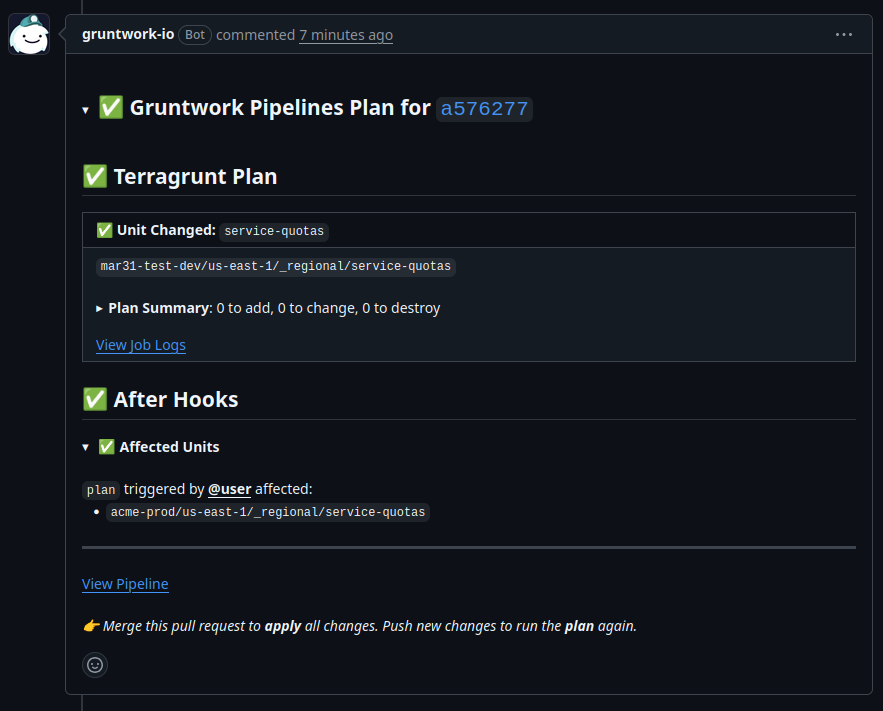 Hook comment on a pull request
The result and comment your hook produced are shown in the Pipelines status comment. The next section covers exactly how they render.
How results and comments appear
Pipelines includes each hook in its status comment on the pull/merge request, rendered as a collapsible section. The output files the hook writes control how that section looks.
Title and icon
The section is titled by the hook's name, or its block label when name is unset. An icon prefixes the title to reflect the outcome:
| Outcome | Icon |
|---|---|
pass result | ✅ |
warn result | ⚠️ |
deny result | ⛔️ |
| Failed (non-zero exit) | ❌ |
| Timed out | ❌ |
| Skipped | ⏭️ |
The overall comment reflects the most severe hook outcome, so a warn or deny is visible at the top without expanding each section.
Summary and comment
The two text outputs serve different purposes:
- Summary (
PIPELINES_HOOK_OUT_SUMMARY_FILE) appears inline next to the title, after a colon, for example⚠️ Affected Units: 3 units changed. Use it for a short, at-a-glance headline. - Comment (
PIPELINES_HOOK_OUT_COMMENT_FILE) is the body of the collapsible section, rendered as Markdown or HTML. Use it for detailed output such as a table, a list, or links.
If the hook writes no comment, Pipelines shows a fallback line in the body, such as Hook exited with code 0. The hook from this guide writes a pass result and a comment, so it appears with a ✅ icon and its unit list in the body.
When the hook exits non-zero, Pipelines ignores these two files and reads PIPELINES_HOOK_OUT_ERROR_SUMMARY_FILE and PIPELINES_HOOK_OUT_ERROR_COMMENT_FILE instead, in the same two places. Write them before exiting so the comment says what went wrong rather than Hook exited with code 1. They need Pipelines with hook API v1.1.0 or later; on an older Pipelines they are not set.
How results affect the run
A deny result fails the pipeline run and blocks the pull/merge request from merging, and shows a ⛔️ in the comment. A warn shows a ⚠️ and raises the severity in the comment but does not fail the run. Results are only read when the hook exits 0; a non-zero exit is always a failure, see Exit codes.
Skipped hooks
A hook skipped because of an earlier failure (see Skipping after a failure) appears with a ⏭️ icon and the note "Hook skipped due to previous failure", rather than as a pass or a failure.
Next steps
- Authentication & Secrets - give a hook cloud credentials and secrets.
- Hooks API - the full environment variable and file contract.