Gruntwork Reference Architecture Form Fields
This post details the various fields on the Gruntwork Reference Architecture's `reference-architecture-form.yml` file that we request customers fill out when preparing for a deployment. It serves as a reference for how the fields are used, their possible values, important caveats to consider when filling out the form, etc.
**CompanyName** (type = string) This is your company's name. It may be used when generating unique prefixes for resources such as S3 buckets, Application Load Balancers, etc. If your company name is too long, our tooling will truncate it so that it does not exceed the character limits imposed by various AWS resources. **PrimaryRegion** (type = string) This is the AWS region that you want your resources (databases, compute stack, etc) deployed into initially. Note, you can only select one PrimaryRegion initially for your deployment. If you wish to run resources in more than one region following your deployment, see [this Knowledge Base answer](https://github.com/gruntwork-io/knowledge-base/discussions/216#discussioncomment-2232046). Please note that not all AWS regions are currently supported. This is because some AWS regions may not actually implement certain AWS services that the Reference Architecture composes. If the region you selected is not supported, a Gruntwork engineer will let you know. **InfraLiveRepoURL** (type = string) This is the URL to the repository where you want to host and run your Reference Architecture code **after** your Reference Architecture has been delivered to you. This URL must end in `.git`. Whereas the `github.com/gruntwork-clients/infrastructure-live-<your-name>` repository is used for the following purposes: - Getting you set up for your Ref Arch deployment - Collaborating with other team members on your side pre-deployment - Collaborating with Gruntwork engineers on your form to ensure you are ready for deployment - Performing the deployment. Gruntwork engineers use this repository and specialized tooling to implement your Reference Architecture your **InfraLiveRepoURL** can optionally point to a different repository where you or your company wants to manage your Ref Arch going forward. For example, if your company prefers Bitbucket and normally works there, you should set this to the HTTPS URL of the Bitbucket repository where you will host this code in the future. **InfraLiveRepoSSHURL** (type = string) This is the SSH URL to the repository where you want to host and run your Reference Architecture code **after** your Reference Architecture has been delivered to you. This URL must end in `.git`. Note that this URL is related to your **InfraLiveRepoURL**. Your `InfraLiveRepoSSHURL` should be the SSH URL **to the same repository you specified in InfraLiveRepoURL**. **InfraLiveDefaultBranchName** (type = string) The default branch of the infrastructure-live repository. This branch is the only branch that the Gruntwork Pipelines solution will be allowed to deploy from. This branch should be marked as protected by your VCS platform. If you are unfamiliar with protected branches, you can review the following documentation: GitHub: https://docs.github.com/en/github/administering-a-repository/about-protected-branches GitLab: https://docs.gitlab.com/ee/user/project/protected_branches.html Bitbucket: https://support.atlassian.com/bitbucket-cloud/docs/use-branch-permissions/ We recommend using "main" as the name of the default branch. If you already have a specially configured branch you want to use# that is not "main" you can create a copy of it by running `git checkout -b main`. Your CI/CD integration will use this branch as the production branch, meaning that 1. This branch will reflect what is deployed and running in production at any given time 2. CI/CD will run `terragrunt apply` against this whenever you merge changes into it (from development or feature branches) 3. Feature branches that are pushed such as `developer-test-feature-1` will have `terragrunt plan` run against them **AdminIAMUsers** (type = list) This is a list of the users that you are requesting be provisioned in your Reference Architecture's Security account during your deployment. The Security account is the only account in the Gruntwork Reference Architecture that contains IAM users, whereas all other accounts use IAM roles for cross-account access. You must specify at least one Admin IAM user when preparing for a Ref Arch deployment. This user will become one of the primary ways to access your Reference Architecture once it is deployed. For each user in your list, you can supply the following attributes: * Username - The IAM username that you want created. * Email - The email address for the IAM user. This must be a valid email address, otherwise password reset workflows will not be successful. * PGPKey - The PGPKey for the user. This PGPKey property is required when you are setting up the AdminIAMUsers for your Reference Architecture. You have two options for supplying a PGPKey: 1. Keybase. You can use an existing Keybase.io user account or make a new one. If you opt to use keybase, your Keybase user MUST have a public PGP Key associated, otherwise your form will not pass preflight checks and will be need to be fixed before your deployment can commence. If your keybase username is `grunty`, then you would enter `keybase:grunty` for the `PGPKey` attribute when defining your Admin IAM user. To confirm that your keybase user has a public PGP key associated, go to https://keybase.io/<username> and ensure you can see a key icon followed by the key fingerprint, like so: 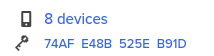 2. Exported PGP Key. You can follow [the instructions here](https://github.com/gruntwork-io/terraform-aws-security/tree/master/modules/iam-users#how-do-i-use-pgp-keys-directly) to export a PGP key that you control locally. **AWSAccounts** (type = list) This is where you will configure the AWS accounts that your Reference Architecture will be deployed into. Please use [the Gruntwork CLI](https://github.com/gruntwork-io/gruntwork) to automatically scaffold and create your AWS accounts if you have not already created them manually. We STRONGLY RECOMMEND use of the Gruntwork CLI because it removes the possibility of manual configuration errors that may delay your deployment. It's important to understand a few key points when defining your AWS Accounts. 1. Gruntwork **requires** BRAND NEW NEVER USED AWS accounts, that have had absolutely nothing done to them. No corporate account baselines can have been applied, as these will conflict with the Gruntwork Reference Architecture's own baselines and will significantly delay your deployment. See also [the Knowledge Base post "Can we use existing AWS accounts and organizations for the Ref Arch?"](https://github.com/gruntwork-io/knowledge-base/discussions/207) 2. It is possible to request additional "App" accounts (dev, stage, prod). In the correlative outer map, add another entry for additional accounts that you want provisioned. For example, if you wanted two staging environments, one named `staging` and one named `qa`, you would find the `stage:` key in the YAML map and enter something like this: ```yaml stage: - Name: "staging" ID: "<YOUR ACCOUNT ID>" DomainName: "example-staging.com" - Name: "qa" ID: "<YOUR ACCOUNT ID>" DomainName: "example-qa.com" ``` 3. It is NOT POSSIBLE to request additional Logs, Security, or Shared accounts. **MachineUserGitUsername** (type = string) This is the username of the Version control system account you have created to serve as your "machine user", which is an integral piece of the Gruntwork Pipelines solution and part of the Gruntwork Reference Architecture deployment tooling. For example, if you are ultimately going to host and run your code in GitHub, you would create a new GitHub account for your machine user. You cannot use an existing GitHub account, such as your existing, personal account because we request a GitHub Personal Access Token from your Machine user's account which gives us sufficient access to upload SSH keys for your user and to make any other changes necessary to perform a deployment. Separation of accounts is an intentional design choice made to enhance your own security. **MachineUserGitEmail** (type = string) We need this email address in order to complete Git configuration required to allow your machine user to make commits in the CI/CD pipeline. **CIServerPlatform** Choose the flavor for the first leg of your Gruntwork Pipelines solution. If you choose `circleci`, we will generate CircleCI configuration files for you in your repository when delivering your Reference Architecture. If you select `gitlab`, we'll scaffold code intended to be used in Gitlab pipelines, and so on. We strongly recommend you choose `circleci` for simplicity and reliability. Please do not choose `jenkins` unless you have multiple years of experience administering Jenkins in a CI/CD pipeline. **VCSPlatformType** (type = string) Enter the VCS platform where you'll be hosting and running your Reference Architecture code in the future. You must select either `github` or `bitbucket` or `gitlab`. Depending upon your selection, we may attempt to do some of the CI/CD pipelines setup for you. For example, if you select Gitlab, we attempt to create the Gitlab project variables your Gruntwork Pipelines solution will require on your behalf. Please note this feature is dependent upon your correctly supplying us with valid credentials to make Gitlab API calls on your behalf. Currently we do not offer such support for Bitbucket. For any and all CI/CD VCS platforms, you will still need to complete a few integration steps upon delivery of your Ref Arch to make your pipeline fully operational. **VCSPATSecretsManagerARN** Whatever VCS platform you are using, do this: - In GitHub, create a new user account, then create a [Personal Access Token (PAT)](https://docs.github.com/en/github/authenticating-to-github/creating-a-personal-access-token). - In the ref arch form, MachineUserGitUsername and MachineUserGitEmail is where you enter this account’s details. - In the [Gruntwork developer portal](https://app.gruntwork.io/), add the user to your team, then log in to the portal as the machine user and link the GitHub account. You’ll know it’s set up correctly when you see the Gruntwork icon in the machine user’s GitHub profile, indicating that they are a member of the Gruntwork Organization. - The PAT should be granted repo, user:email, and admin:public_key permissions. - Once you have the PAT, create a new [AWS Secrets Manager](https://aws.amazon.com/secrets-manager/) secret in the shared account. You can use any name you wish for this secret. See the section [Appendix: How to create a secret for the VCS token in AWS Secrets Manager](https://github.com/gruntwork-clients/infrastructure-live#appendix-how-to-create-a-secret-for-the-vcs-token-in-aws-secrets-manager) for details. - Once the secret is created, make a note of the ARN. - In the ref arch form, `VCSPATSecretsManagerARN` is where you enter this ARN. If you are using GitHub as your VCS, you’re done with this section! If you’re using GitLab or BitBucket, do the following: For GitLab, use [these instructions](https://docs.gitlab.com/ee/user/profile/personal_access_tokens.html), and grant the following scopes (NOTE: api, read_user, and read_api scopes are only used for uploading the public SSH key for the user. You can replace the token with a new one that only has write_repository permission after the Reference Architecture is deployed.): - `write_repository` - `api` - `read_user` - `read_api` For Bitbucket, use [these instructions](https://support.atlassian.com/bitbucket-cloud/docs/app-passwords/)[](https://github.com/gruntwork-clients/infrastructure-live#explanation-2), and grant the following scopes (NOTE: Account:Write is only used for uploading the public SSH key for the user. You can replace the token with a new one that only has Repositories:Write permission after the Reference Architecture is deployed.): - `Repositories:Write` - `Account:Write` Then create another secret in AWS Secrets Manager in the shared account containing this PAT. Note the ARN, as in the GitHub step above. In the ref arch form, `GitHubPATSecretsManagerARN` is where you enter this ARN. Why do we require this? The reference architecture includes an end-to-end [CI/CD pipeline for infrastructure](https://gruntwork.io/pipelines/). You’ll need to set up a machine user (also known as a service account) that will automatically checkout your code, push artifacts (such as Docker images and AMIs), and access the Gruntwork IaC Library. You need one [machine user in GitHub](https://developer.github.com/v3/guides/managing-deploy-keys/#machine-users) to access the repos in the Gruntwork IaC Library. If you’re not using GitHub, (e.g., in BitBucket or GitLab), you’ll need to create another machine user for that VCS. **CACertFields** (type = map) These certificate authority values will be used to create the TLS certificates that [the AWS Sample App](https://github.com/gruntwork-io/aws-sample-app) we deploy into your app accounts will use to serve traffic over HTTPS. **UsingCISCompliance** (type = bool) Set this value to true if you have purchased [the CIS AWS Foundations Benchmark add-on](https://gruntwork.io/achieve-compliance/) **VPNIPAllowList** (type = list) The list of CIDR ranges that are permitted to access the network bastion. Note that, even if you have purchased the CIS compliance add-on, you MAY supply the default CIDR range of `0.0.0.0/0` if you wish, for this VPNIPAllowList entry. If you wish to specify that a single IP address should have access, be sure to add the correct `/32` prefix, like so: ```yaml VPNIPAllowList: - "192.168.2.1/32" ``` **SSHIPAllowList** (type = list) The list of CIDR ranges that will be permitted SSH access to the network bastion. Note that if you purchased the CIS compliance add-on, you **MUST** set this to a CIDR range more restricted than `0.0.0.0/0`. Your CIS deployment cannot proceed if you supply `0.0.0.0/0` for this value. **BastionType** (type = string) The flavor of bastion host you would like to protect your private resources. **AppServerClusterType** (type = string) **DatabaseType** (type = string) **CacheType** (type = string)