Upgrading Aurora MySQL with minimal downtime
We currently have an Aurora RDS cluster with read and write instances. ([r:terraform-aws-data-storage](https://github.com/gruntwork-io/terraform-aws-data-storage)) <img width="983" alt="image" src="https://user-images.githubusercontent.com/4851312/178852113-6bd99370-dc0f-4b95-b07f-1e0fac4cff21.png"> We need to upgrade the Aurora version and also the instance size. My understanding is that both of those updates require downtime. Is that correct? Currently, the engine version is `5.6.mysql_aurora.1.22.2`. We do have Multi-AZ enabled with 2 zones. 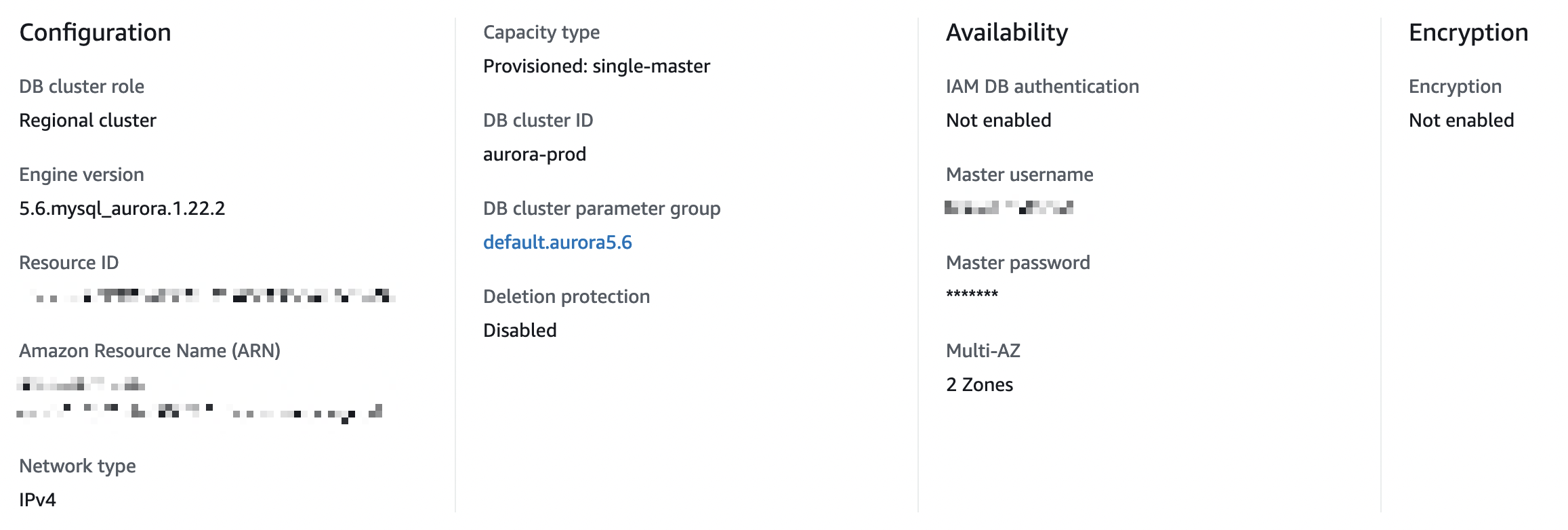 Do you have any recommendations to do an upgrade with minimal downtime? I've done some research and doing a blue/green deployment may be a good way, but I'm not sure if that's the best way and how to set that up with Terraform. Dev ops is not my primary function (we're a very small team) so any recommendations are welcomed. Thank you. --- <ins datetime="2022-07-13T23:11:49Z"> <p><a href="https://support.gruntwork.io/hc/requests/108982">Tracked in ticket #108982</a></p> </ins>
Note, whatever you do, always schedule a maintenance window for this work, and let everyone know about the window. Minimal downtime is still downtime, and things can always go wrong. Some important resources: - https://aws.amazon.com/blogs/database/performing-major-version-upgrades-for-amazon-aurora-mysql-with-minimum-downtime/ - https://docs.aws.amazon.com/AmazonRDS/latest/UserGuide/USER_UpgradeDBInstance.Upgrading.html - https://docs.aws.amazon.com/AmazonRDS/latest/AuroraUserGuide/AuroraMySQL.Updates.MajorVersionUpgrade.html#AuroraMySQL.Upgrading.Compatibility At `xlarge`, you're looking at several hours of downtime. Whether you do this update in place, or a blue/green deployment, the in-place and the green deployment can be upgraded the same way: - Change the `engine_version` number in your terragrunt/terraform configuration and run `terragrunt apply` or `terraform apply`. - For the instance type, change the `instance_type` or `instance_class` configuration (our `rds` module names this variable `instance_type`, but the resource calls it `instance_class` internally). You can do these both in the same changeset for the a single `apply`. - Some links to our module code: [aurora](https://github.com/gruntwork-io/terraform-aws-data-storage/blob/master/modules/aurora/main.tf#L298-L301) and [rds](https://github.com/gruntwork-io/terraform-aws-data-storage/blob/master/modules/rds/main.tf#L141-L144) If you can afford it, blue/green deployment is the better choice. You should still plan for the minimal downtime which exists in blue/green deployment, during the switch over. Note that a lot of resources out there say that updating just the instance type (if you wanted to do the version and instance type as separate upgrade steps) is a zero downtime upgrade on Aurora RDS with multi-AZ setup. But this is not true. People still report downtime of 10 - 20 minutes. So my take is that if you're going to update both version and instance type, might as well do them together. Setting up the green environment replica can be done without using ClickOps as well. If you're familiar enough with the module code that currently manages your RDS cluster, you'd make a copy of that, put it in a new folder. If you're using our `infrastructure-live` folder structure, you would choose which account/region/environment it belongs in. If you're using our Gruntwork Pipelines (which comes with the Reference Architecture) you can push this new folder to your repo, have your CI pick up the change and run apply for you (with your approval). But you can instead opt to run `apply` locally, authing from your machine to AWS, from that folder. This might lock up your machine, which can be a downside. The plan should show what it will create. Once it's up, update the configuration and apply it. Then wait for the instances to be available. _This is where I'm not sure--your local machine might be locked up running this apply process for the full duration of the upgrade!_ When you're ready to destroy, run `destroy` manually from the original folder where the blue environment configuration is.